A remote wipe in Microsoft 365 is the emergency switch every IT admin needs in their pocket: a single command that erases corporate data — or the entire device — from a phone the moment it goes missing or an employee walks out the door. Knowing how to perform a remote wipe correctly means choosing between a full factory reset and a selective wipe, picking the right channel for the device type, and keeping a clean audit trail for compliance.
This guide covers the four channels available to perform a remote wipe in Microsoft 365 — Outlook on the web, the Exchange admin center, Exchange Online PowerShell, and Microsoft Intune — plus the decision matrix for full versus selective wipe, the verification methods, and the audit log angle. For the broader security context, see our guides on improving MFA efficiency with Microsoft 365 and Microsoft Intune device management.
🛡️ Free: M365 Tenant Security Audit Checklist
17-page PDF with 50 hands-on checks covering Entra ID, Exchange Online, SharePoint, Teams, Intune, license waste, and audit logging. PowerShell commands included. Built from 60+ real tenant audits at Wintive.
🚨 When to perform a remote wipe
Three triggers justify a remote wipe in Microsoft 365. First, a lost or stolen device with corporate access — whether the user reports the loss or the security team detects suspicious activity. Then, a departing employee whose device must be cleared before reissue or before the leaver walks out with cached email and credentials. Furthermore, a BYOD compliance breach — for example, a personal phone that suddenly fails Conditional Access policies or shows signs of jailbreak or root.
The wipe action removes corporate data from the device — emails, calendars, contacts, and in some scenarios apps and settings. However, the destructive scope depends on which channel you use and which switch you flip. Therefore, the next two sections cover the choice of wipe type and the choice of channel before any command is run.
🔀 Full versus selective remote wipe
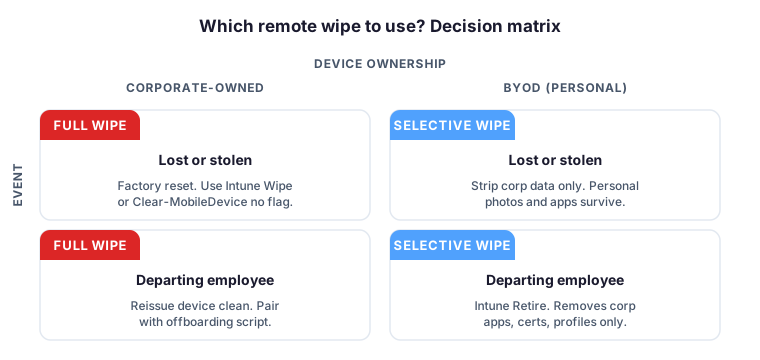
The first decision before any remote wipe is the scope of erasure. Specifically, a full wipe performs a factory reset on the entire device, deleting everything including personal photos, third-party apps, and saved Wi-Fi passwords. In contrast, a selective wipe — also called Account Only wipe in PowerShell or Retire action in Intune — removes only corporate data such as email, calendar, work apps, and certificates while preserving personal content.
For corporate-owned devices in lost or leaver scenarios, full wipe is the standard answer. However, for BYOD devices, selective wipe is the right call almost every time — a full factory reset on a personal phone exposes the company to legal claims and damages employee trust. Indeed, the modern Microsoft Intune Wipe and Retire actions formalise this distinction at the policy level.
🚦 Four channels to perform a remote wipe
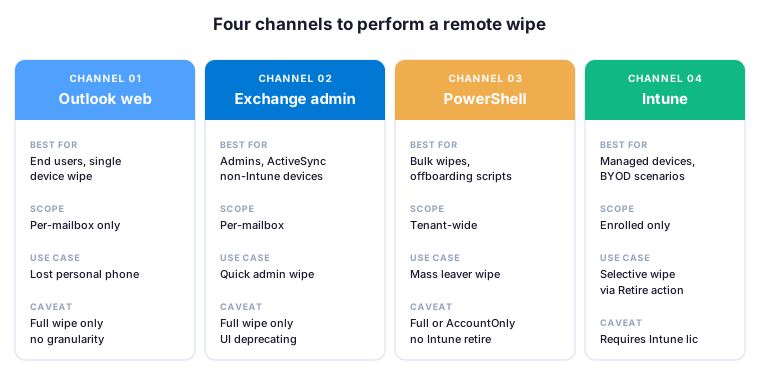
Microsoft 365 exposes four channels to trigger a remote wipe, and each one fits a different use case. For example, end users with a single device can wipe from Outlook on the web. In contrast, admins handling ActiveSync-only devices reach for the Exchange admin center, while bulk operations and offboarding scripts call PowerShell. Specifically, Microsoft Intune is the only channel that supports proper selective wipe via the Retire action and granular conditional policies.
🖥️ Remote wipe via Outlook on the web
The prerequisite is an Office 365 subscription with Exchange Online. Open https://outlook.office.com and sign in with your work or school account. The Outlook web flow lets a user wipe a single device tied to their own mailbox in four steps.
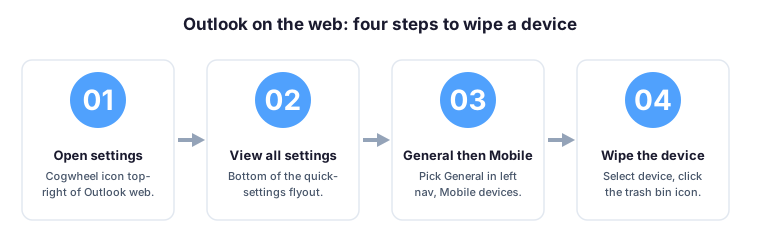
⚙️ 1. Open the settings cogwheel
Click the cogwheel icon in the top-right banner of the Outlook web interface. The settings flyout opens on the right side of the window.
📋 2. View all Outlook settings
At the bottom of the quick-settings flyout, click “View all Outlook settings” to open the full preferences modal where every Outlook option lives.
📱 3. General then Mobile devices
In the left navigation of the settings modal, select General, then choose Mobile devices from the second column. The list shows every device tied to your mailbox via ActiveSync.
🗑️ 4. Select the phone, click Wipe
Click the row of the phone you want to erase, then click the trash bin icon. Outlook prompts for a final confirmation before the wipe is queued. The erasure process triggers as soon as the device reconnects to the network.
⚡ Remote wipe via Exchange Online PowerShell
For bulk operations, offboarding scripts, or any scenario beyond a single user wiping a single device, Exchange Online PowerShell is the right tool. The cmdlet is Clear-MobileDevice and it ships with a useful -NotificationEmailAddresses parameter to capture the wipe confirmation in your audit trail.
To trigger a full remote wipe on a single device and email the confirmation to the IT mailbox:
Clear-MobileDevice -Identity WM_TonySmith -NotificationEmailAddresses "admin@contoso.com"If the device connects via an email app other than Outlook, the -AccountOnly switch limits the wipe to email, calendar, and account data — leaving personal content intact:
Clear-MobileDevice -AccountOnly -Identity WM_TonySmith -NotificationEmailAddresses "admin@contoso.com"To find the device identity for a specific user before wiping — useful when the user has multiple phones registered:
Get-MobileDevice -Mailbox "user@contoso.com" | Select-Object Identity, FriendlyName, DeviceModel, ClientType, FirstSyncTimeFor mass wipe of every device tied to a departing employee — a common offboarding pattern:
Get-MobileDevice -Mailbox "leaver@contoso.com" | ForEach-Object { Clear-MobileDevice -Identity $_.Identity -NotificationEmailAddresses "admin@contoso.com" }The -AccountOnly switch has no effect on Outlook devices because Outlook only supports account-only wipes by design. For the full reference, see the Microsoft Clear-MobileDevice documentation.
📲 Remote wipe via Microsoft Intune
For enrolled devices, Microsoft Intune exposes two distinct actions in the Intune admin center: Wipe performs a full factory reset, and Retire performs a selective wipe that removes only corporate data while preserving personal content. Specifically, the Retire action is the modern best practice for any BYOD scenario — it removes work apps, certificates, and the corporate profile without touching personal photos or installed apps.
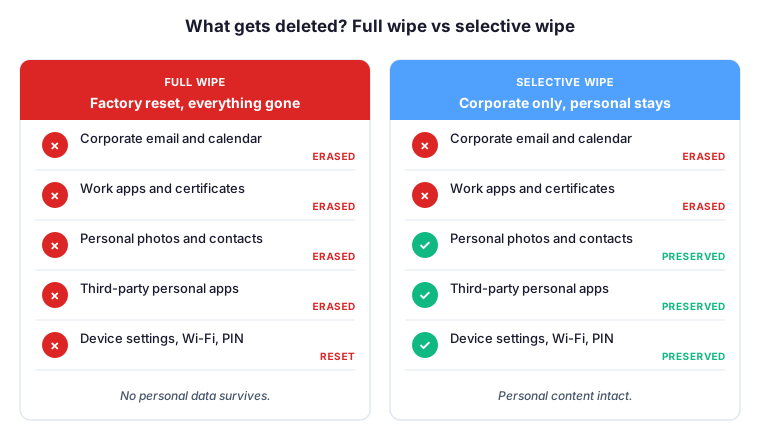
To trigger a wipe via Intune, navigate to Intune admin center → Devices → pick the device → Wipe or Retire. The action queues immediately and fires when the device next checks in. For the full Intune context, see our guide on what Microsoft Intune is and when to use it.
🛡️ Remote wipe via the Exchange admin center
For ActiveSync devices not enrolled in Intune, the Exchange admin center offers a quick GUI alternative to PowerShell. Navigate to Exchange admin center → Recipients → pick the user → Mobile devices → pick the device → Wipe device. However, the EAC path performs a full factory reset only — there is no selective wipe option here. Therefore, enroll BYOD devices in Intune to gain the Retire action and avoid wiping personal data.
✅ Verify the remote wipe completed
Three methods confirm a remote wipe reached its target. For example, the -NotificationEmailAddresses parameter sends a confirmation message the moment the wipe finishes. Additionally, the device status in both the Exchange admin center and Outlook on the web transitions through a clear sequence:
- Confirmation email. Run
Clear-MobileDevicewith-NotificationEmailAddressesset to your admin or shared mailbox. Therefore, every wipe leaves a paper trail in the inbox. - Exchange admin center status. The mobile device status moves from Pending Wipe to Data Deleted once the device confirms the operation.
- Outlook on the web status. The same transition appears in the user-facing mobile devices view, useful when the admin and the user verify the wipe together.
📋 Remote wipe channel comparison
The wintive-table below summarises when to use each channel — useful for first-line tickets where the request is “please wipe John’s phone” without context on device ownership or enrollment status.
| Channel | Best for | Wipe types | Caveat |
|---|---|---|---|
| Outlook on the web | End users, single device | Full only | Per-mailbox scope |
| Exchange admin center | Admins, ActiveSync devices | Full only | UI being deprecated |
| Exchange Online PowerShell | Bulk wipes, offboarding | Full or AccountOnly | No Intune Retire |
| Microsoft Intune | Managed devices, BYOD | Full or Retire (selective) | Requires Intune license |
💡 Remote wipe best practices
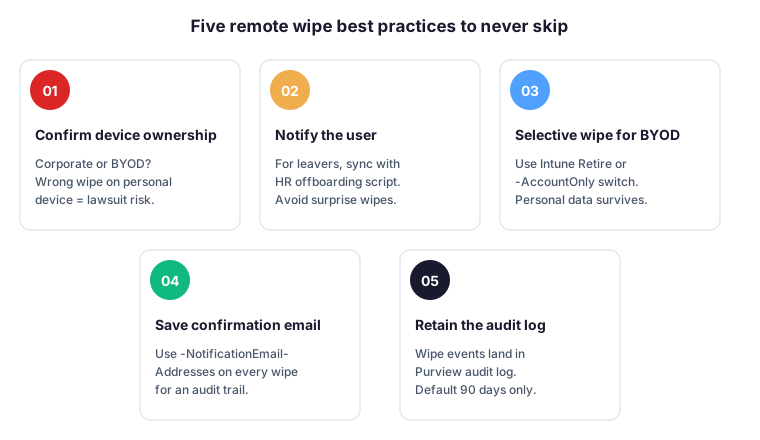
- Confirm device ownership before wiping. A full remote wipe on a personal BYOD device exposes the company to legal claims for personal data loss. Therefore, check the device record in Intune or the user agreement before pulling the trigger — a 60-second sanity check saves a six-figure dispute.
- Notify the user when the scenario allows. For departing employees, sync the wipe with the HR offboarding script so the device is wiped after the final paycheck and access revocation. For example, surprise wipes on a Friday afternoon create more tickets than they close.
- Prefer selective wipe for BYOD. Use the Intune Retire action or the
-AccountOnlyswitch in PowerShell for any personal device. Specifically, this preserves user trust, avoids legal exposure, and still removes corporate email, calendar, and certificates. - Save the confirmation email. The
-NotificationEmailAddressesparameter is not optional in production — it is your single line of audit evidence that a wipe happened, when, and on which device. Indeed, route those notifications to a shared IT audit mailbox for retention. - Mind the audit log retention. Microsoft Purview retains audit log entries for 90 days on E3 plans and 1 year on E5 by default. Therefore, export wipe events to long-term storage if your compliance scope requires more than the default window.
🛡️ Audit log and compliance
Every remote wipe action is logged in the Microsoft Purview audit log under the Exchange admin workload, with the exact cmdlet, the device identity, the target mailbox, and the admin who initiated the wipe. For example, search for the operation name Clear-MobileDevice in Microsoft Purview compliance portal → Audit to retrieve the full event chain.
Additionally, BYOD scenarios often trigger data privacy obligations under GDPR or local equivalents. Specifically, document the wipe consent in your acceptable use policy so users explicitly accept that connecting a personal device to corporate data grants the IT team the right to perform a selective wipe — not a full one — in defined circumstances.
⚠️ Wintive take: production gotchas
Two pitfalls show up in remote wipe tickets every quarter. Specifically, the most damaging one is the admin who fires a full remote wipe on a BYOD device because the user reported it lost — only for the phone to turn up in the office two hours later, factory-reset, with the user demanding compensation for personal photos and contacts. Therefore, always confirm device ownership and consider the -AccountOnly path before any wipe on a non-corporate device.
The second pitfall is the offline device that sits in Pending Wipe for weeks. However, the wipe only fires when the device reconnects to the network — so a powered-off phone, a SIM swap, or a factory-reset attacker workflow can defeat the operation. Furthermore, pair the wipe with revocation of refresh tokens via Revoke-AzureADUserAllRefreshToken and a Conditional Access block to cover the gap.
🤔 Frequently asked questions about remote wipe
No. A full remote wipe in Microsoft 365 cannot be reversed once the device reconnects to the internet. Personal data is permanently deleted. Therefore, confirm device ownership and the wipe scope before triggering the action. A selective wipe via Intune Retire or PowerShell -AccountOnly is reversible only for the account profile, not for the data already removed.
A remote wipe queues immediately on the Microsoft 365 side but only fires when the device reconnects to the network. For online devices, the factory reset typically completes within minutes. Offline devices remain in Pending Wipe status until they reconnect, which can be hours or days depending on whether the device is powered on.
A full wipe performs a factory reset on the entire device, removing all data, apps, and settings including personal content. A selective wipe (-AccountOnly switch in PowerShell or Intune Retire action) removes only corporate data such as email, calendar, work apps, and certificates while personal photos, contacts, and apps remain intact. Selective wipe is the standard practice for BYOD scenarios.
Yes. ActiveSync devices can be wiped via Outlook on the web, the Exchange admin center, or Exchange Online PowerShell with Clear-MobileDevice. Microsoft Intune is required only for the granular Retire action, conditional access policies, and managed app configurations. A non-enrolled device wiped via PowerShell defaults to a full factory reset.
Remote wipe events are recorded in the Microsoft Purview audit log under the Exchange admin workload, with details such as the cmdlet executed, the device identity, the target mailbox, and the admin who initiated the wipe. Default retention is 90 days for E3 plans and 1 year for E5. Export to long-term storage if compliance requires longer.
📚 What to read next
Continue your Microsoft 365 security reading with our guide to improving MFA efficiency, our Microsoft Intune device management overview, and our top PowerShell commands for Exchange Online.